1 Section
One full-width row. The starting point for a heading, a picture or a paragraph that spans the email.
Email templates and broadcasts in WorkFolder are designed by dragging objects onto a canvas: sections, text, pictures, buttons, cards and personalised fields. What you see is what arrives, on a desktop or a phone.
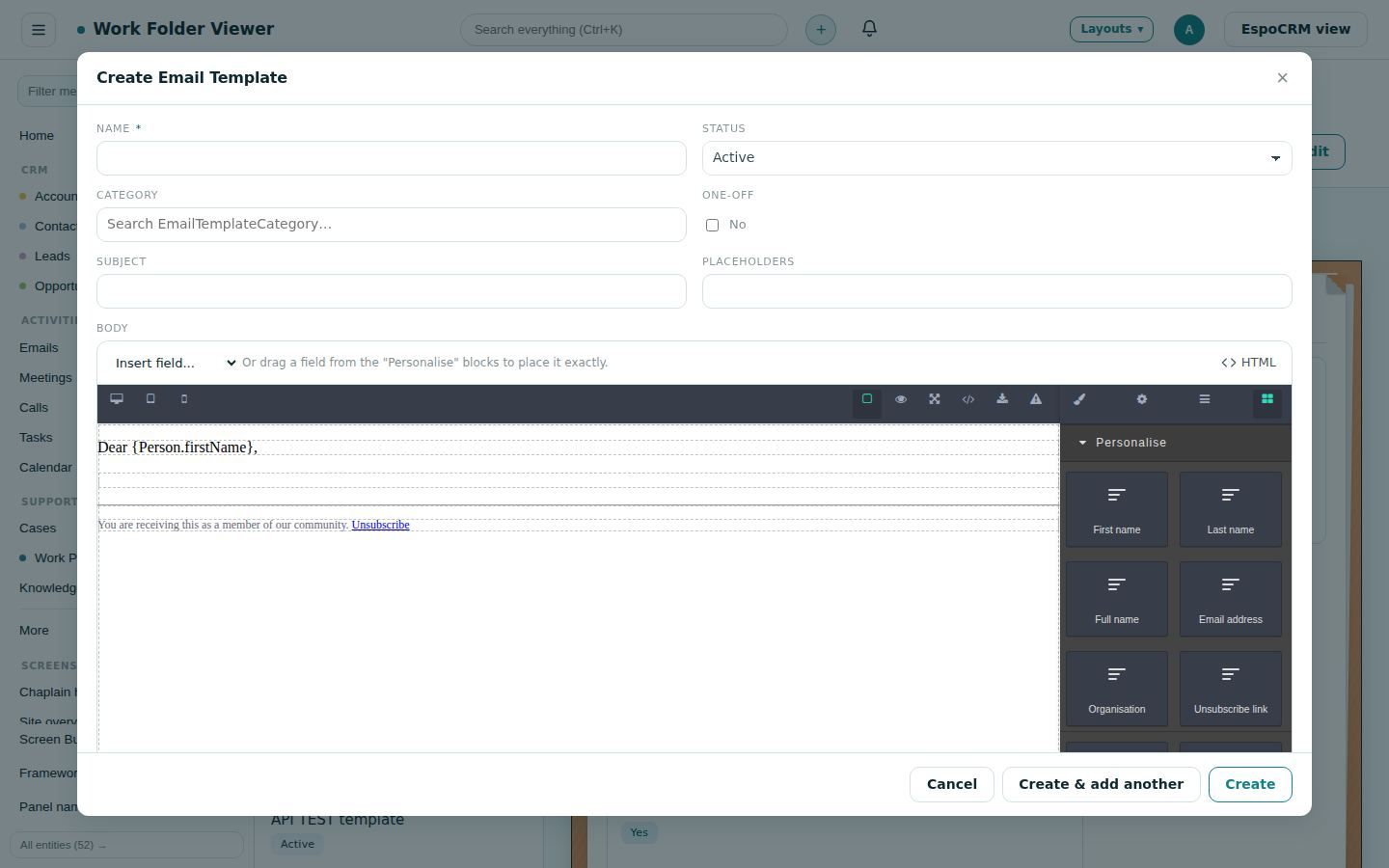
The same template, edited both ways. Click either picture to enlarge it.
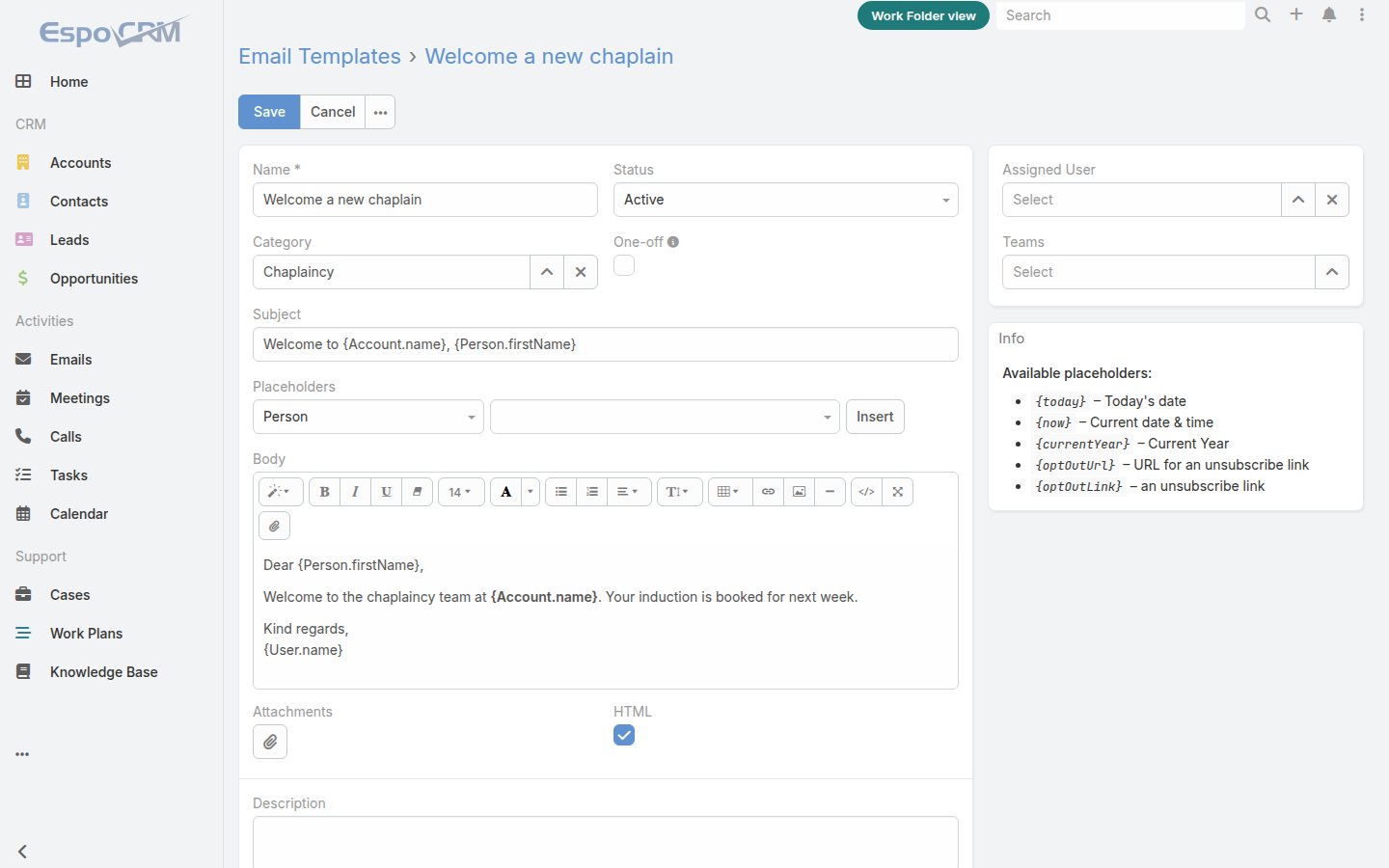
Sections set the columns of the email. They are built as email-safe tables, so the columns hold their shape in Outlook, Gmail and phone mail apps.
One full-width row. The starting point for a heading, a picture or a paragraph that spans the email.
Two equal columns side by side: two stories, or a picture beside its text.
Three equal columns: three events, three services or three quick links.
A narrow column and a wide one, for a photo or icon beside a longer piece of text.
Drop these into a section and edit them where they sit. Each one has its own style settings: font, colour, spacing, borders and background.
A paragraph you type into directly, with bold, italic, links and lists.
A ready-made heading with a paragraph under it, styled to match.
A picture, uploaded from your computer and kept in EspoCRM, so it travels inside the email.
A call-to-action button that is still a button in every mail program, not a picture of one.
A horizontal rule to separate parts of the email.
A pull quote set off from the text, for a testimonial or a line worth repeating.
A text link you can place anywhere and style on its own.
A clickable area that can hold other objects, so a whole card or picture becomes the link.
For newsletters with several stories, events or products.
Two cards side by side, each with a picture, a title and text. Duplicate the row for more.
Rows with a picture on the left and the title and text on the right, like an events list.
Merge fields are chips: they can be placed, moved or deleted, but not broken by typing inside them. EspoCRM fills them in for each person when the email goes out.
The person's first name, for "Dear Margaret,".
The person's last name.
First and last name together.
The address the email is going to.
The person's account or organisation.
The opt-out link every bulk email needs. Broadcasts check for it before sending.
The objects sit in the panel beside the canvas, grouped as above. Drag one onto the email, or select something on the email and use Insert field.
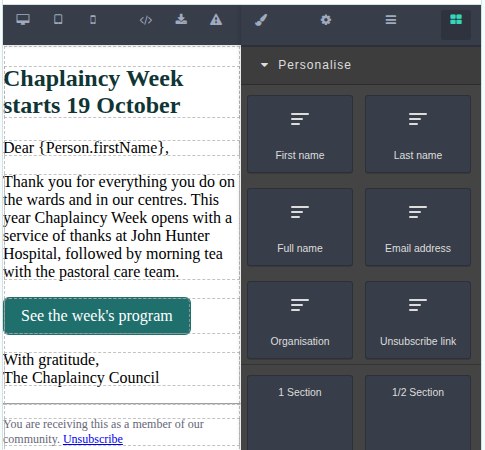
Switch the canvas between three widths to see how the email reflows before anyone receives it.
Fonts, sizes, colours, spacing, borders and backgrounds for whatever is selected.
Link address, picture description (alt text) and other settings for the selected object.
The structure of the email as a tree, so you can pick a cell inside a column inside a section.
Shows the email as it looks when a mail program blocks pictures, so the message still reads.
Paste in an existing HTML email, or open the HTML to adjust it by hand.
Every change can be stepped back.
Adds a merge field where you are working, without dragging.
| Standard EspoCRM template editor | WorkFolder email designer | |
|---|---|---|
| How you build | Type into one rich-text box with a formatting toolbar | Drag sections and objects onto a canvas and edit them in place |
| Columns | Need tables set up by hand, which often break in Outlook | Section objects with 1, 2 or 3 columns, built the way email programs expect |
| Phone preview | None | Desktop, tablet and phone widths |
| Buttons and cards | Hand-made with links and tables | Button, Grid Items and List Items objects |
| Styling | Text formatting only | Fonts, colours, spacing, borders and backgrounds per object |
| Merge fields | Picked from two drop-downs and typed into the text, where they are easy to break | Personalise objects that stay whole, plus Insert field |
| Unsubscribe link | Typed in as a placeholder | An object, and broadcasts warn when it is missing |
| Starting point | An empty box | A standard layout with greeting and unsubscribe footer |
| Output | HTML from the text box | Email-ready HTML with styles written into each element |
| Where it is used | Email templates | Email templates, broadcasts and campaigns: the same designer everywhere |
| HTML access | Code view | HTML view and import |
Templates are saved in EspoCRM as ordinary email templates, so anything that already uses them, including workflows and mass email, keeps working. A template marked as plain text keeps a plain text box.
Try it free for a month on your own EspoCRM. Nothing to install: sign in and see your records as work folders.